LIBRARY SERVICE FREE
Book Scanner Guide.
Scan. Crop. Save.
That’s basically it.
WHERE Lo’s Library
& Seminary Library
& Seminary Library
COST FREE
IN A HURRY? Open the Fast Guide
→
HOW IT WORKS
4 steps
01 START HERE
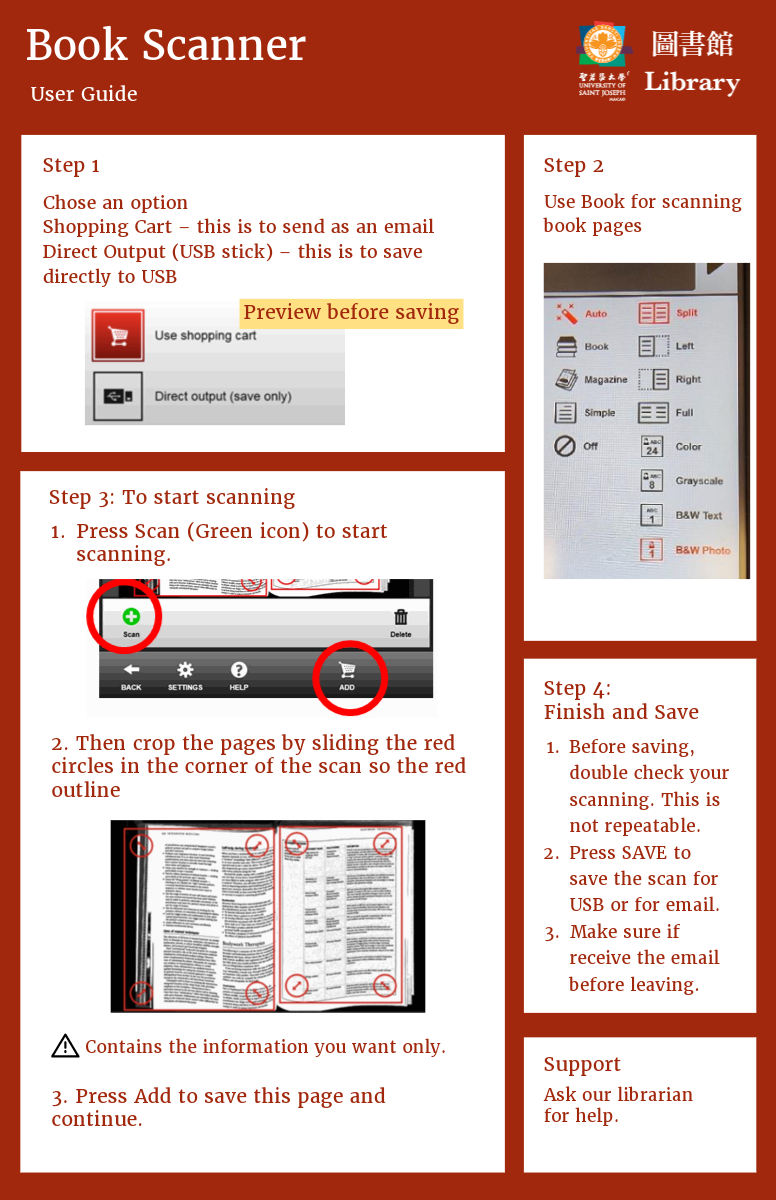
Pick your output.
On the home screen, choose how you want your files saved.
Shopping Cart Preview first → then email
Direct Output Save straight to USB
02 ONE TAP
Choose Book mode.
Tap Book on the screen menu. This optimises the scanner for bound pages.
Look for BOOK on the menu
03 REPEAT FOR EACH PAGE
Scan. Crop. Add.
Repeat these three actions for every page you want to keep.
1
SCAN Press the green Scan button.
2
CROP Drag the red corner handles.
3
ADD Tap the shopping cart icon.
TIP
Only outline the content you actually want.
04 DON’T SKIP THIS
Check it. Then Save.
Make sure all your pages look right before ending the session.
✓
Review all scanned pages.
✓
Tap SAVE to export.
✓
If using email, check that it arrived.
⚠
Important: scans cannot be recovered once the session ends.
!
Copyright & Usage Policy
Keep it for study.
Scans of library materials are strictly for personal study and research. Commercial reproduction or distribution is strictly prohibited.
STUCK?
Ask us. 👋
Need help with the scanner? Ask a librarian at the front desk.
→