USJ Library · Self-Service Station
Print. Copy. Scan.
Need to print, copy or scan something? Skip the long instructions. Choose what you need and follow the four-step guide.
TL;DR
What are you doing?
Pick your task and jump straight to the instructions.
01
Print a document from your computer at the self-service station.
4 steps → 02
📄 Normal Copy
Make a regular copy of a physical document.
4 steps → 03
🔄 Duplex Copy
Copy both sides of a document using the duplex process.
4 steps → 04
📱 Scan
Scan documents and save them digitally.
See scanning → A4
MOP 0.50 / 2.00
B/W · MOP 0.50
Colour · MOP 2.00
A3
MOP 0.50 / 3.00
B/W · MOP 0.50
Colour · MOP 3.00
Payment
MacauPass / MPay
Print and copy services are paid. Document scanning is free.
01 · Printing
How to print?
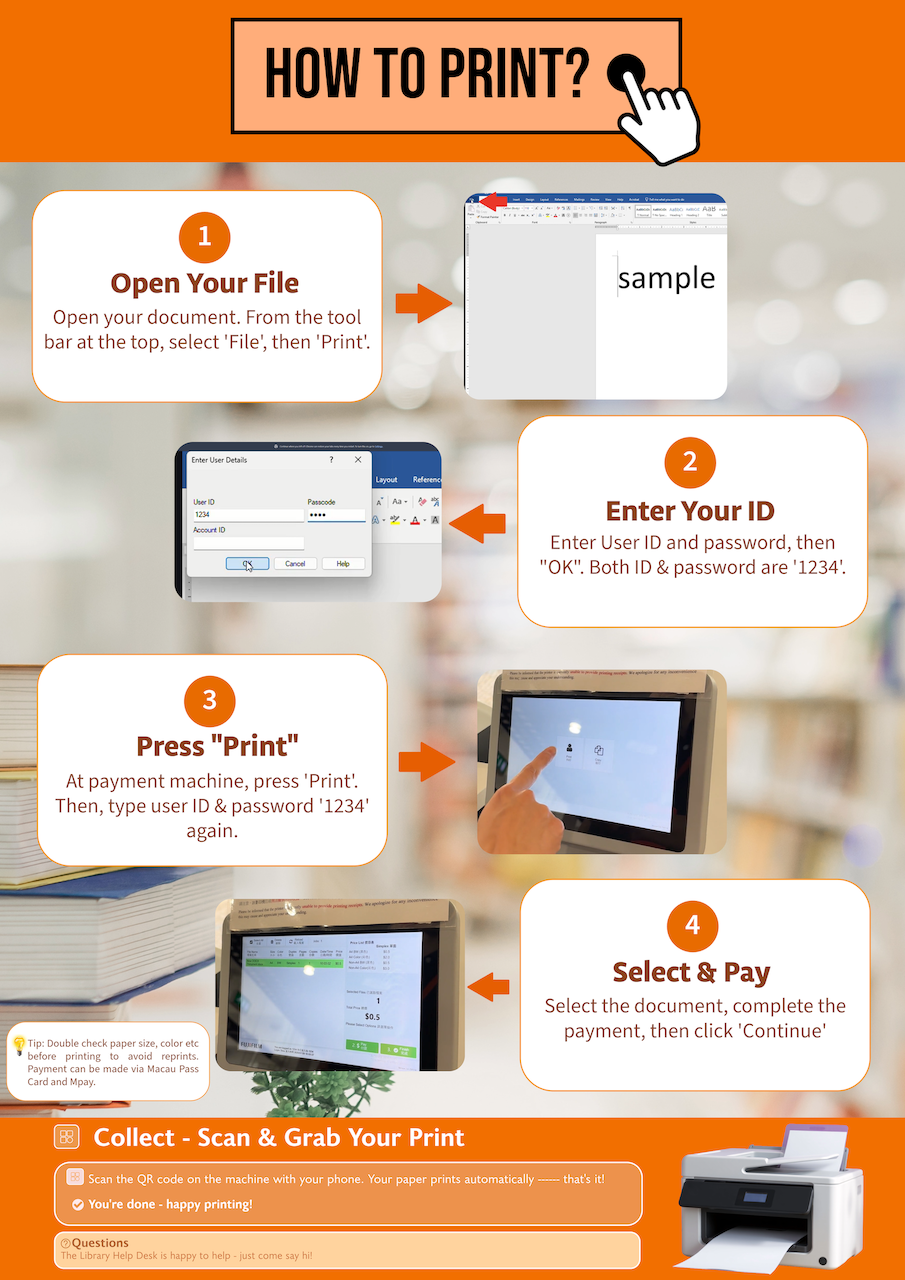
Open your file → send it to the printer → pay → collect.
01
Open Your File
Open your document. From the toolbar, select File → Print.
→ Start 02
Enter Your ID
Enter your User ID and password when prompted.
→ Login 03
“Login” Again
At the payment machine, enter your User ID and password again.
→ Send job 04
Select & Pay
Select the document, complete payment, then click Continue.
→ Finish Collect — Scan & Grab Your Print Scan the QR code on the machine
with your phone. Your print comes out automatically.
👀 Visual guide How to Print
Print complete 🎉
Scan the QR code and collect your print.
DONE
02 · Normal Copy
Copy a document.
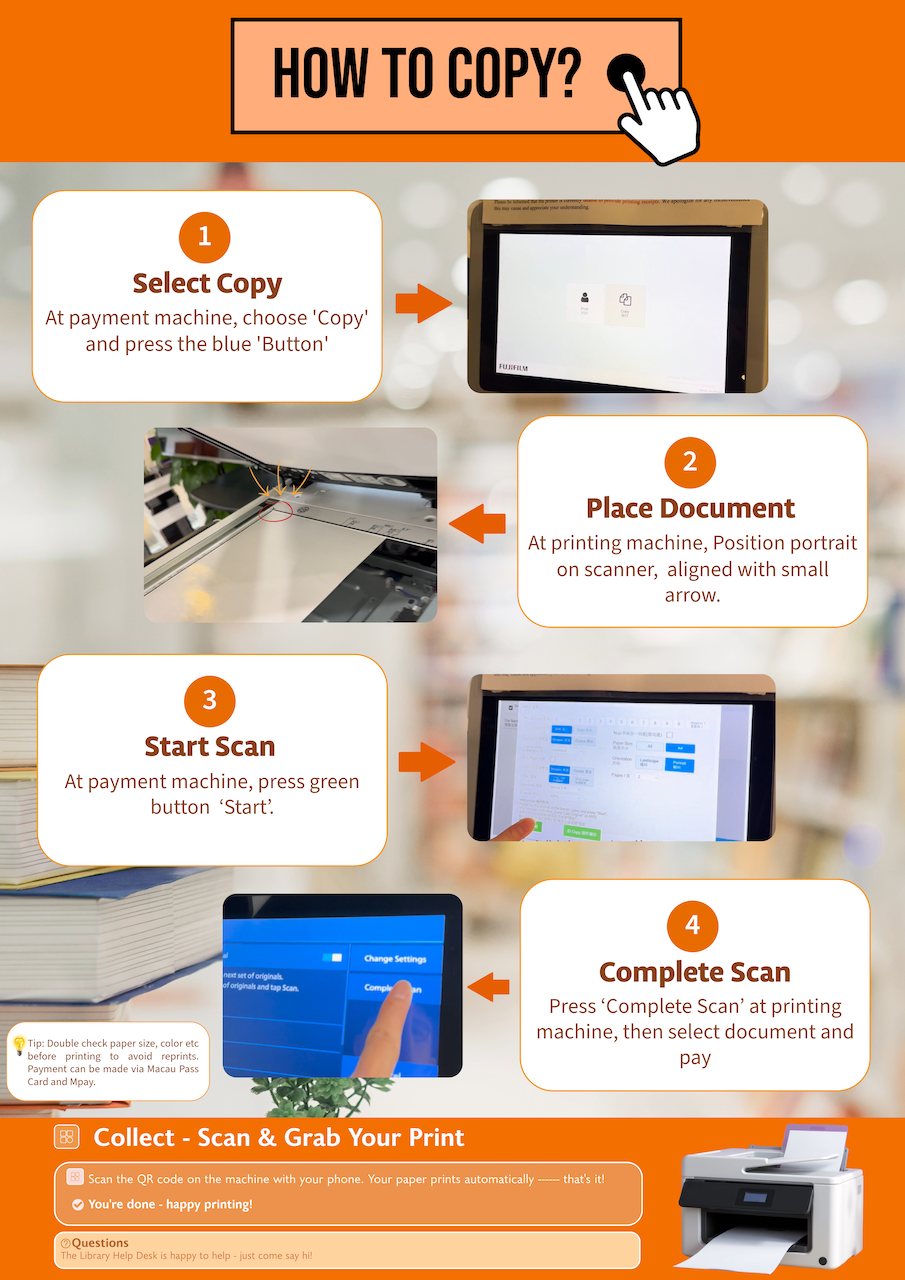
Regular copy? Follow the four steps below at the self-service station.
01
Select Copy
At the payment machine, choose Copy and press the blue button.
→ Choose Copy 02
Place Document
Position the document in portrait and align it with the small arrow.
→ Position 03
Start Scan
At the pringing machine, press the green Start button.
→ Start 04
Complete Scan
Press Complete Scan at the printing machine. Then select the document and pay.
→ FinishChange Settings
Check your copy settings, including paper size and colour, before completing the job.
Payment
Payment can be made via MacauPass Card or MPay.
👀 Visual guide Normal Copy
Copy complete ✓
Select the document, complete payment, and collect your copy.
DONE
03 · Duplex Copy
Copy both sides.
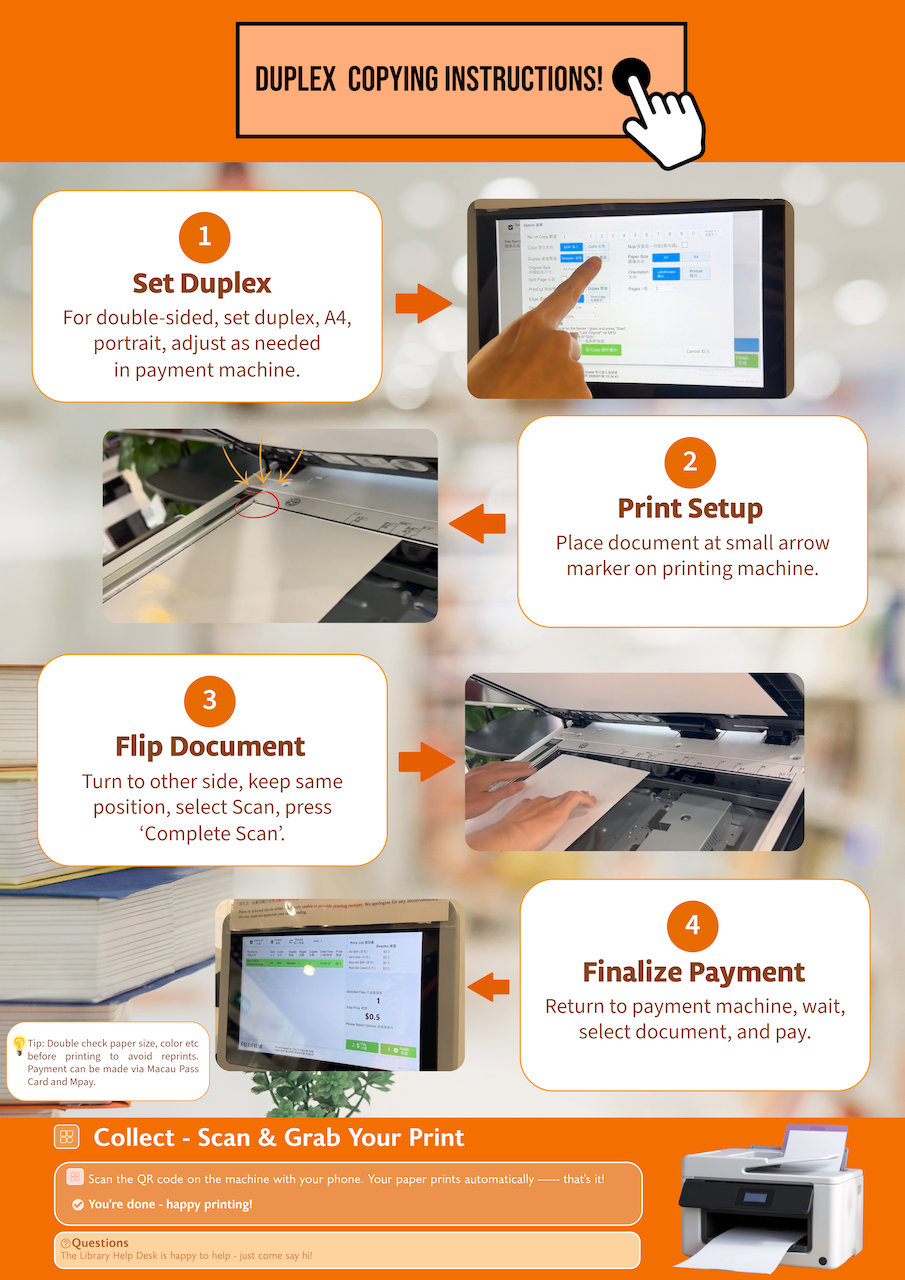
Need double-sided copying? Follow the machine sequence below.
01
Set Duplex
Set duplex, A4 and portrait. Adjust settings as needed at the payment machine.
→ Set it up 02
Place Document
Place the document at the small arrow marker on the printing machine.
→ Position 03
Flip Document
Turn the document to the other side while keeping the same position. Select Scan and press Complete Scan.
→ Flip & scan 04
Finalize Payment
Return to the payment machine, select the document and complete payment.
→ Finish 👀 Visual guide Duplex Copying Instructions
Double-sided copy complete ✓
Select the document, complete payment, and collect your copy.
DONE
04 · Scanning
Go digital.
Document scanning is free. Bring your own USB or use the available saving options at the scanner.
Document Scanning
The Library provides document scanning service free of charge.
View Scanner Guide →A3 Book Scanner
A high-quality A3 book scanner is available in the reading room. Scanning is free.
How to use →Save your scan
The current scanner guide recommends using a USB drive for saving files. Please check the on-screen options at the machine.
Before You Pay
Quick checks.
A five-second check can save you from a wrong reprint.
Check paper size
Confirm A4 or A3 before completing your print or copy.
Check colour
Check whether you need black & white or colour.
Check payment
Print and copy services are paid services. MacauPass and MPay are supported.
Special paper?
If you need to print on special paper, ask a librarian for assistance.
Where to find it
Self-service stations.
Copy, print and scanning facilities are available at the Library locations.
Lo’s Library
Estrada Marginal da Ilha Verde, 14–17, Macau, China.
Saint Joseph Seminary Library
Self-service facilities are available at the Seminary Library for authorised users.
Need a hand?
Don’t stress.
Something isn’t working? Ask the Library team for help with printing, copying, scanning or library facilities.
Contact Library Help Desk →